
VPN Connection
- To access the VPN, you need to be on the Faxon-Guest network, if you are on the regular Faxon network, it will not work.
- To access the VPN, you need to access the FortiClient on your desktop screen or from the app drawer.

- Once you enter the FortiClient, you need to make sure that you are connecting to the AFF VPN (not Faxon VPN)
- Once you confirm that you are connecting to the AFF VPN, you need to input your credentials for the VPN. These will be provided to you by the IT dept.
- Once the credentials are verified, the VPN will let you know that it is connected meaning that you have successfully connected your computer to the Boston Office’s network
- From here, you can access the Data from their servers as well as a remote desktop to be able to run Job Boss
Remote Desktop
- To access the remote desktop for the Boston Office, you need to be connected to the VPN
- If you are not connected to the VPN, please reference the VPN Connection section to get connected.
- Once connected to the VPN, you will be able to access an icon on the desktop that looks like this

- If you do not have an Icon like this, please contact IT
- Click On the on the Icon and input your credentials provided to you by the IT department.
- You can now utilize this desktop to perform tasks on Job Boss as if you were sitting in Boston.
Network File Share
- To access the Network File Shares for the Boston Office, you need to be connected to the VPN
- If you are not connected to the VPN, please reference the VPN Connection section to get connected.
- Once connected to the VPN, you will be able to access an icon on the desktop that looks like this
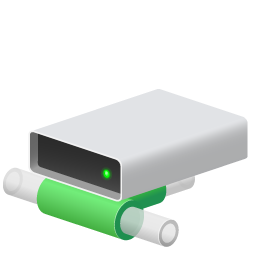
- If you do not have an Icon like this, please contact IT
- You can then click on This icon that has been setup by the IT department to access the network file share that is in the Boston Office.
If at any time that you have questions or concerns about the VPN setup and the functions that it allows you to use, please contact IT
Comments
0 comments
Please sign in to leave a comment.